
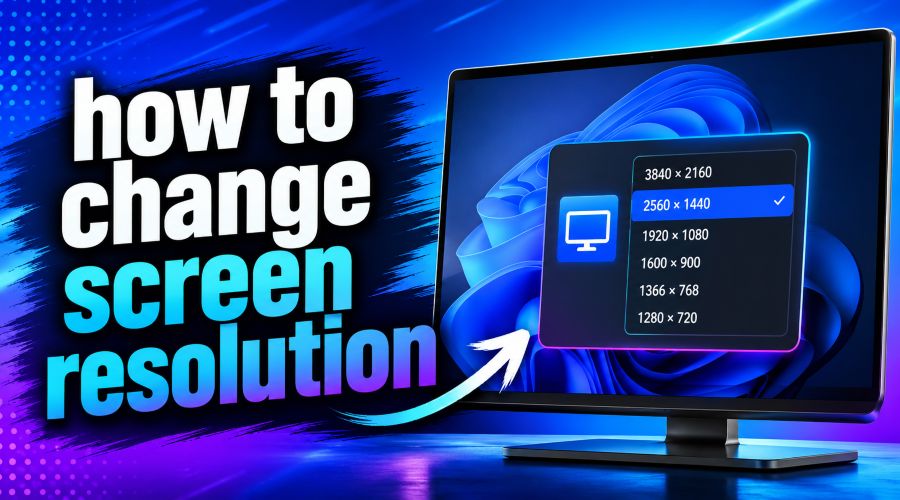
Learning how to change screen resolution can make your computer, laptop, or monitor easier to read, sharper to view, and more comfortable to use every day.
Screen resolution controls how many pixels appear on your display. A higher resolution usually shows more detail, while a lower resolution can make text, icons, and windows appear larger.
The right setting depends on your screen size, eyesight, operating system, and the type of work you do. A designer, gamer, student, and office worker may all prefer different display settings.
In this guide, you will learn what screen resolution means, how to adjust it on common devices, and how to fix the most frequent display problems.
Screen resolution is usually written as width by height, such as 1920 by 1080. These numbers describe how many pixels are shown across and down the screen.
Most modern displays have a recommended resolution. This is often called the native resolution, and it usually gives the sharpest image quality.
Changing resolution can affect more than sharpness. It may change how much content fits on the screen, how large apps appear, and how smooth videos or games look.
If everything looks too small, you may not need to lower the resolution. Display scaling can often make text and icons larger while keeping the image clear.
Before changing settings, note your current resolution. That way, you can quickly switch back if the new setting looks stretched, blurry, or uncomfortable.
How Do You Change Screen Resolution?
Open Display Settings
On most computers, screen resolution is changed from the display settings area. You can usually reach it by right-clicking the desktop and choosing display settings, or by opening the system settings menu and selecting the display section.
Find the Resolution Menu
Look for a setting named resolution, display resolution, screen resolution, or similar wording. This menu normally shows several options, with one marked as recommended for your device.
Choose the Recommended Option
For the clearest result, start with the recommended resolution. This setting matches the physical pixel layout of your monitor or laptop screen and usually prevents blur, stretching, and uneven text.
Apply the New Setting
After selecting a resolution, apply the change and wait for the preview. Most systems give you a short time to confirm the new setting before automatically returning to the previous one.
Check Text and Icons
Once the setting is applied, look at text, icons, browser tabs, and app windows. If they are sharp but too small, adjust scaling instead of lowering the resolution.
Test Videos and Apps
Open a video, document, web page, or frequently used app to see how the new resolution feels in real use. Some older programs may not display perfectly at very high resolutions.
Revert If Needed
If the screen looks distorted, blurry, or awkward, return to the previous setting. A good resolution should make the display sharper and easier to use, not harder to read.
Best Settings for a Clearer Display
1. Use the recommended resolution first because it is usually matched to your screen's native pixel count.
2. Increase display scaling if text and icons look too small but the picture itself is sharp.
3. Avoid very low resolutions unless you need larger on-screen elements or an older app requires it.
4. Match your monitor's aspect ratio so the image does not look stretched sideways or squeezed vertically.
5. Restart apps after changing resolution if menus, toolbars, or windows do not resize correctly.
Common Resolution Problems to Check
- Blurry text: Blurry text often means the display is not using its recommended resolution or the scaling setting needs adjustment.
- Stretched image: A stretched image usually happens when the selected resolution does not match the monitor's aspect ratio.
- Missing option: If the resolution you want is missing, the graphics driver, cable, dock, or monitor connection may be limiting available choices.
- Tiny icons: Tiny icons are often better fixed with scaling instead of lowering the screen resolution.
- Black screen: A black screen after changing resolution may mean the monitor cannot display that setting, so wait for the system to revert or restart safely.
- Game mismatch: Some games use separate resolution settings, so check the game's graphics menu as well as the operating system settings.
- Second monitor issue: External monitors may need individual resolution settings, especially when using different screen sizes or display types.
Device-Specific Resolution Tips
Windows Computers
On Windows, open Settings, choose System, then Display. Select the monitor you want to adjust, open the display resolution menu, and choose the recommended option unless you have a specific reason to use another setting.
Mac Computers
On a Mac, open System Settings and go to Displays. macOS often presents resolution as scaled options, so choose the setting that gives the best balance between workspace size and readability.
Chromebooks
On a Chromebook, open Settings, select Device, then Displays. You can adjust display size, resolution, and orientation depending on the Chromebook model and any connected external monitor.
External Monitors
When using an external monitor, select that screen before changing resolution. Each display can often have its own resolution, refresh rate, scaling, and orientation settings.
TV Screens
If you connect a computer to a TV, choose a standard resolution such as 1920 by 1080 or 3840 by 2160 when supported. Also check the TV picture settings if edges are cut off.
Gaming Setups
For gaming, resolution affects both image quality and performance. A higher resolution looks sharper, but a lower resolution may improve frame rates on less powerful graphics hardware.
Work and Study Use
For writing, research, spreadsheets, and online classes, the best resolution is usually the one that keeps text crisp while leaving enough workspace for multiple windows.
Changing screen resolution is a simple way to improve how your display looks and feels. The best place to start is always the recommended resolution listed in your display settings.
If the picture is sharp but too small, adjust scaling rather than reducing resolution. This keeps text clear while making the interface easier to read.
For external monitors, TVs, and gaming setups, check both the device settings and the app or game settings. Each screen may need its own adjustment.
Once you understand how resolution, scaling, and aspect ratio work together, it becomes much easier to create a display setup that feels clear, comfortable, and practical.
FAQs About how to change screen resolution
What is the best screen resolution to use?
The best screen resolution is usually the recommended or native resolution shown in your display settings. It normally gives the sharpest image because it matches your screen's physical pixels.
Why does my screen look blurry after changing resolution?
Your screen may look blurry if you choose a resolution that does not match the display's native resolution. Switch back to the recommended setting and adjust scaling if items are too small.
Can changing screen resolution damage my monitor?
Changing screen resolution through normal system settings should not damage your monitor. If a setting is unsupported, the screen may go blank temporarily and then revert automatically.
Why are some resolution options missing?
Missing resolution options can be caused by outdated graphics drivers, a limited cable, a docking station, or a monitor that does not support the setting you want.
Should I change resolution or scaling?
Use resolution to control image detail and workspace size. Use scaling when the display is sharp but text, icons, and buttons are too small to read comfortably.
How do I change resolution on a second monitor?
Open display settings, select the second monitor, and then choose its resolution from the available options. Make sure you are changing the selected monitor, not the main screen.