
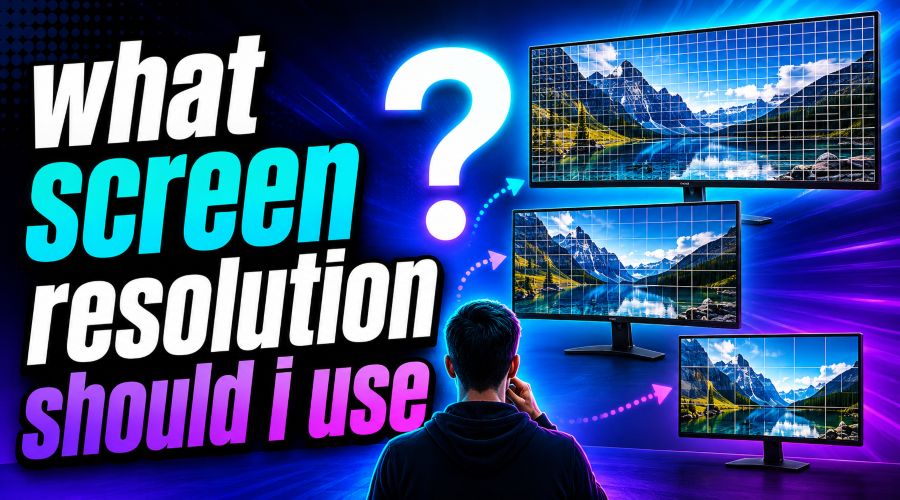
If you are asking what screen resolution should i use, the best answer depends on your screen size, eyesight, work habits, and hardware performance.
Resolution controls how many pixels appear on your display. More pixels usually mean sharper images, more workspace, and cleaner text, but they can also demand more from your computer.
For everyday users, the right choice is usually the resolution marked as recommended by the operating system. For gamers, designers, editors, and multitaskers, the ideal setting may be more specific.
The goal is not always to choose the highest number. The goal is to choose the resolution that feels clear, comfortable, and practical for how you use your device.
Screen resolution is written as width by height, such as 1920 x 1080 or 2560 x 1440.
A higher resolution gives you more pixels, which can make text, images, and video look sharper.
However, screen size matters. A 4K resolution looks very different on a 27-inch monitor than it does on a small laptop.
Scaling also matters because it changes how large text, icons, and windows appear without changing the actual pixel count.
For most people, the best starting point is native resolution, then adjusting display scaling until everything feels easy to read.
What Resolution Fits Your Screen Best?
For 13- to 15-Inch Laptops
A 1920 x 1080 display is still comfortable for many laptop users, especially with scaling set between 100% and 125%. Higher resolutions can look sharper, but small text may become tiring without proper scaling.
For 24-Inch Monitors
A 24-inch monitor works well at 1920 x 1080 because the pixel density is acceptable for general browsing, office work, streaming, and casual gaming. It is also easier for budget graphics hardware to run smoothly.
For 27-Inch Monitors
A 27-inch monitor is often best at 2560 x 1440. This resolution gives noticeably more workspace than Full HD while keeping text and interface elements sharp without requiring extreme scaling.
For 32-Inch Monitors
A 32-inch screen can use either 2560 x 1440 or 3840 x 2160, depending on your priorities. Choose 1440p for larger default text and easier performance, or 4K for sharper detail and more room.
For Ultrawide Displays
Ultrawide monitors commonly use 2560 x 1080, 3440 x 1440, or higher. The best choice is usually the panel's native resolution because ultrawide formats rely on exact pixel mapping for crisp results.
For TVs Used as Monitors
A 4K TV can work well as a monitor if you sit far enough away and enable proper display settings. For close desk use, make sure text looks clean and input lag is low.
Best Resolution Choices by Use Case
1. Use 1920 x 1080 if you want a simple, affordable, and widely supported setup for browsing, schoolwork, office tasks, and streaming.
2. Use 2560 x 1440 if you want a strong balance of sharpness, workspace, and performance on a 27-inch monitor.
3. Use 3840 x 2160 if you edit photos, watch high-quality video, or want very sharp text on a larger display.
4. Use your display's native resolution whenever possible because it usually gives the cleanest image and least distortion.
5. Lower the resolution only when performance, readability, or app compatibility matters more than maximum sharpness.
Signs You Should Change Resolution
- Blurry text: If letters look soft or uneven, your monitor may not be running at its native resolution.
- Tiny icons: If icons and menus are too small, keep the resolution and increase display scaling instead.
- Poor game performance: If games stutter, lowering resolution can reduce the workload on your graphics card.
- Crowded workspace: If windows feel cramped, a higher resolution can give you more room for multitasking.
- Eye strain: If you squint often, adjust scaling, brightness, and viewing distance before changing monitors.
- Wrong aspect ratio: If the image looks stretched, choose a resolution that matches your display's shape.
How to Pick a Comfortable Setup
Start With Native Resolution
Native resolution is the physical pixel layout of your screen. It is usually labeled as recommended in Windows, macOS, or your display settings. Starting there gives you the sharpest baseline before making comfort adjustments.
Use Scaling Before Lowering Resolution
If everything looks too small, scaling is usually better than lowering resolution. Scaling keeps the image sharp while making text, menus, and interface elements larger and easier to read.
Match Resolution to Hardware
Higher resolutions require more graphics power, especially in games, 3D software, and video editing. If your computer feels slow at 4K, 1440p or 1080p may provide a smoother experience.
Consider Viewing Distance
The farther you sit from the screen, the less you may notice extra pixels. A living room TV can look excellent at 4K from several feet away, while a desk monitor needs sharper text up close.
Check App Compatibility
Some older programs do not scale cleanly on high-resolution displays. If an app looks blurry, oversized, or cramped, try changing scaling settings before changing the system-wide resolution.
Balance Workspace and Readability
More resolution gives you more space for windows, timelines, spreadsheets, and design tools. Still, the best setup is one you can use for hours without leaning forward or constantly zooming in.
Test Real Daily Tasks
Open the apps you use most, including your browser, documents, games, editor, or creative tools. The right resolution should feel natural during actual work, not just impressive in the settings menu.
For most users, the best screen resolution is the native resolution of the display combined with comfortable scaling.
Choose 1080p for budget setups, 1440p for a strong everyday desktop experience, and 4K when sharpness and workspace matter most.
The real answer depends on comfort as much as specifications. If text is readable, images are sharp, and performance is smooth, you are using the right setting.
When in doubt, start with the recommended display setting and adjust scaling until your screen feels clear and easy to use.
FAQs About what screen resolution should i use
What screen resolution should I use for everyday work?
For everyday work, 1920 x 1080 is fine for smaller monitors, while 2560 x 1440 is often better for a 27-inch screen because it gives more workspace and sharper text.
Is 4K always better than 1080p?
4K is sharper, but it is not always better for every user. It needs more graphics power and often requires scaling so text and icons remain comfortable.
Should I use the recommended resolution?
Yes, the recommended resolution is usually your display's native resolution, which normally gives the clearest image and best overall quality.
What resolution is best for gaming?
For gaming, 1080p is good for high frame rates, 1440p is a strong balance, and 4K is best when you have powerful hardware and value visual detail.
Why does my screen look blurry?
Your screen may look blurry if it is not set to native resolution, if scaling is poorly handled, or if the cable, display settings, or graphics driver are causing image quality issues.
Is 1440p better than 1080p?
1440p is usually better on larger monitors because it gives more detail and workspace. On smaller screens, 1080p may still be comfortable and practical.